
Windows · How-to 3 min
How to set a wallpaper on Windows 10 and 11
Change the desktop background, choose how it fits your display or give each monitor a different picture.
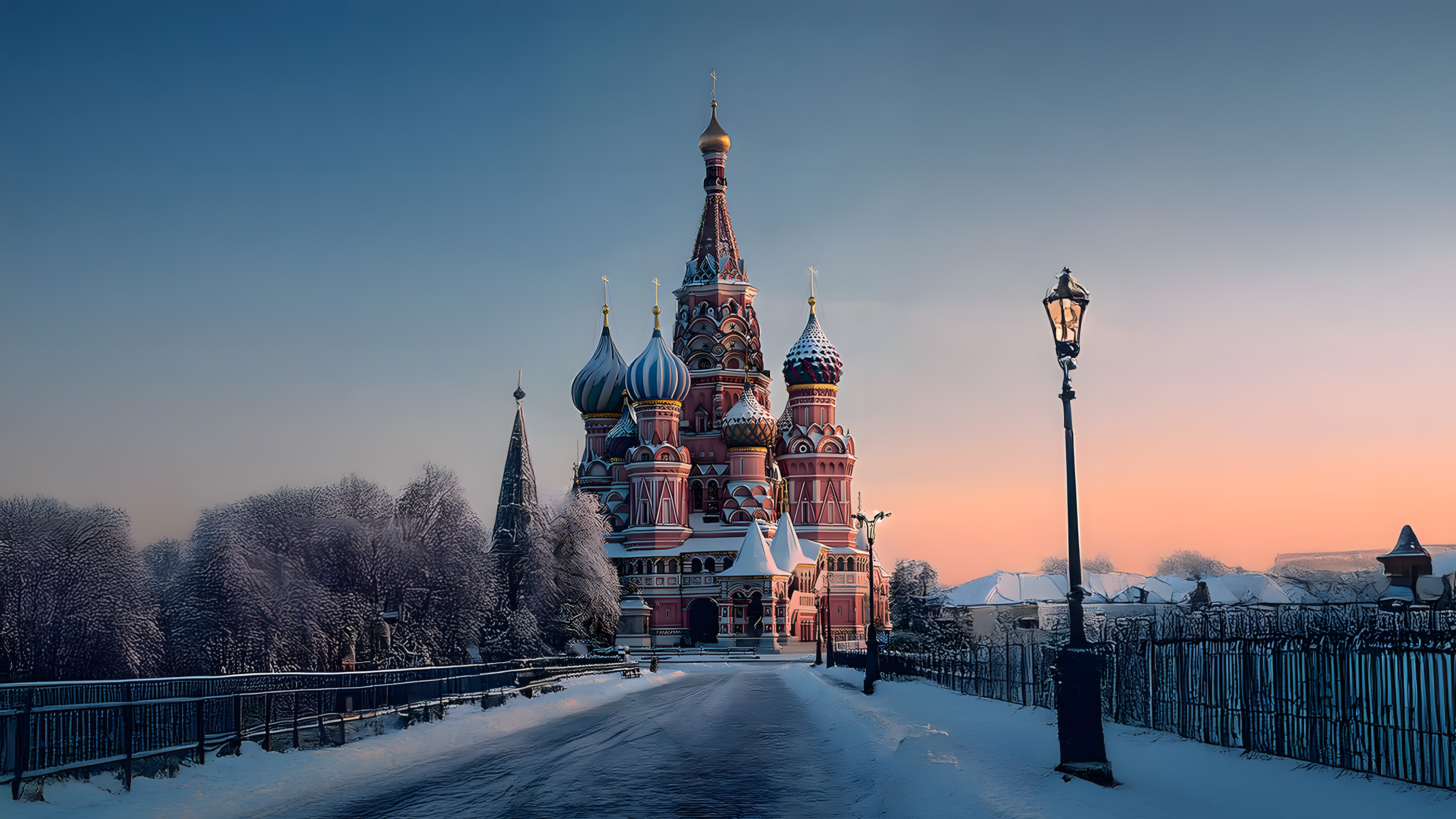
For a quick change, download a landscape wallpaper, find the file in File Explorer and right-click to set it as your desktop background. Use Settings when you want to control how the image fits.
Choose the background and fit
- Press Win + I and go to Personalization → Background.
- Choose Picture and browse to the downloaded file.
- Try Fill to cover the screen. If the aspect ratios differ, Windows crops the edges. Fit keeps the full image visible and may leave borders.
If you have two monitors
With Picture selected, right-click a thumbnail in Recent images and choose a monitor. If you use multiple virtual desktops, that menu assigns backgrounds to desktops. To spread one panorama across several displays, try Span.
Slideshows and the lock screen
For automatic rotation, save your wallpapers in one folder, choose Slideshow in the background settings and select the folder and interval. Set the lock screen separately under Personalization → Lock screen.