
Android · How-to 3 min
How to set a wallpaper on Android
Find the settings on Samsung, Pixel, Xiaomi and Huawei phones, then check the crop on both screens.
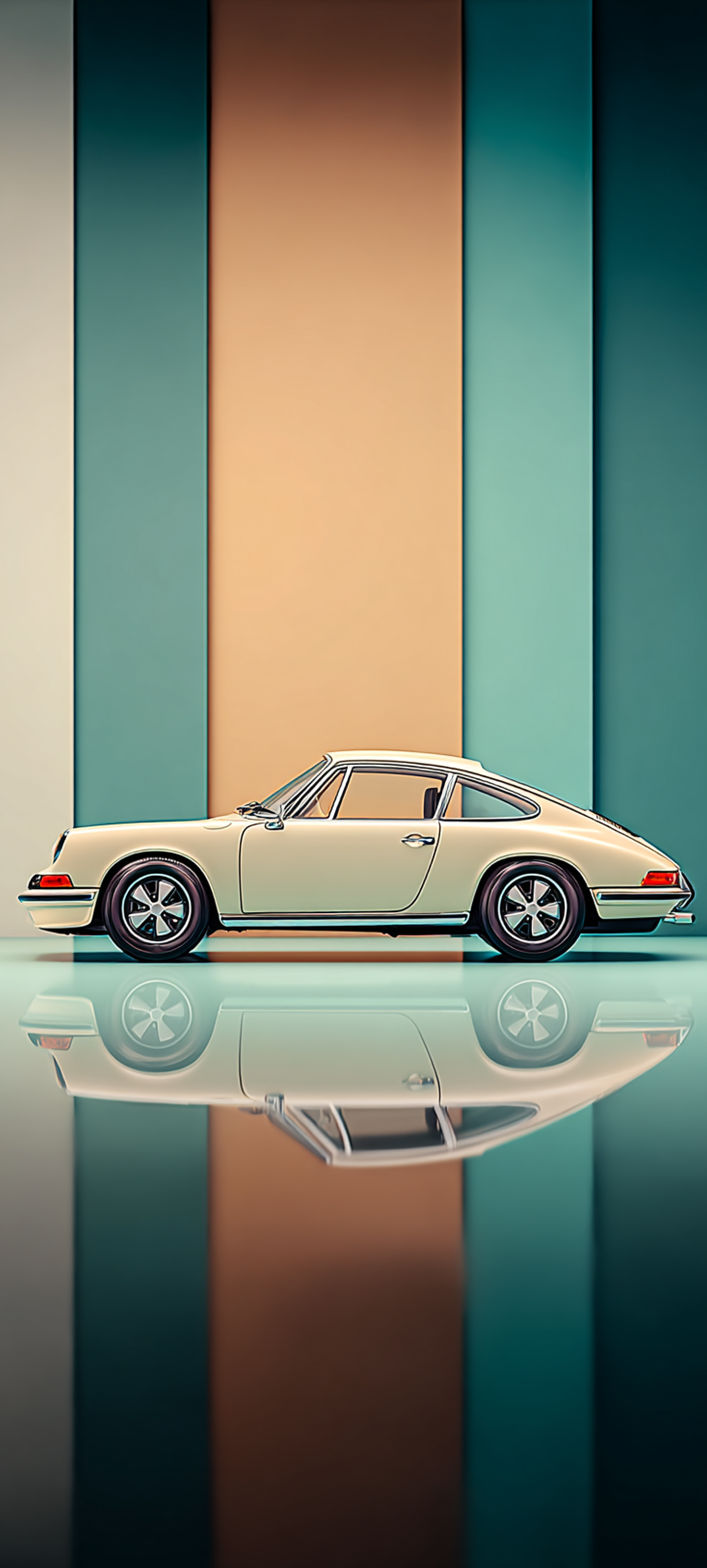
Download a portrait wallpaper, open it in your gallery app and look for Set as wallpaper in the menu. If the option is missing, open the phone’s personalisation settings. Menu names can vary with the model and software version.
Find the editor on your phone
- Samsung Galaxy. Touch and hold an empty spot on the Home screen → Wallpaper and style → Change wallpapers → Gallery. Pick the image and choose a screen.
- Google Pixel. Touch and hold an empty spot on the Home screen → Wallpaper & style → Change wallpaper. Choose your photo and preview the Home and Lock screens.
- Xiaomi and Redmi. Open the picture in Gallery, tap the three-dot menu and choose Set as wallpaper. On some models you can also start in Wallpaper & personalization in Settings.
- Huawei. Open the picture in Gallery and use the menu to choose Set as → Wallpaper. Then select a screen.
Check the crop before applying
On the Lock screen, check that you can read the clock. On the Home screen, check app labels and widgets. If the phone zooms in, try a taller wallpaper or move to an image with its subject further from the edges.