
How to set a wallpaper on iPhone
Save an image to Photos, set up the Lock Screen and choose a separate background for your apps.
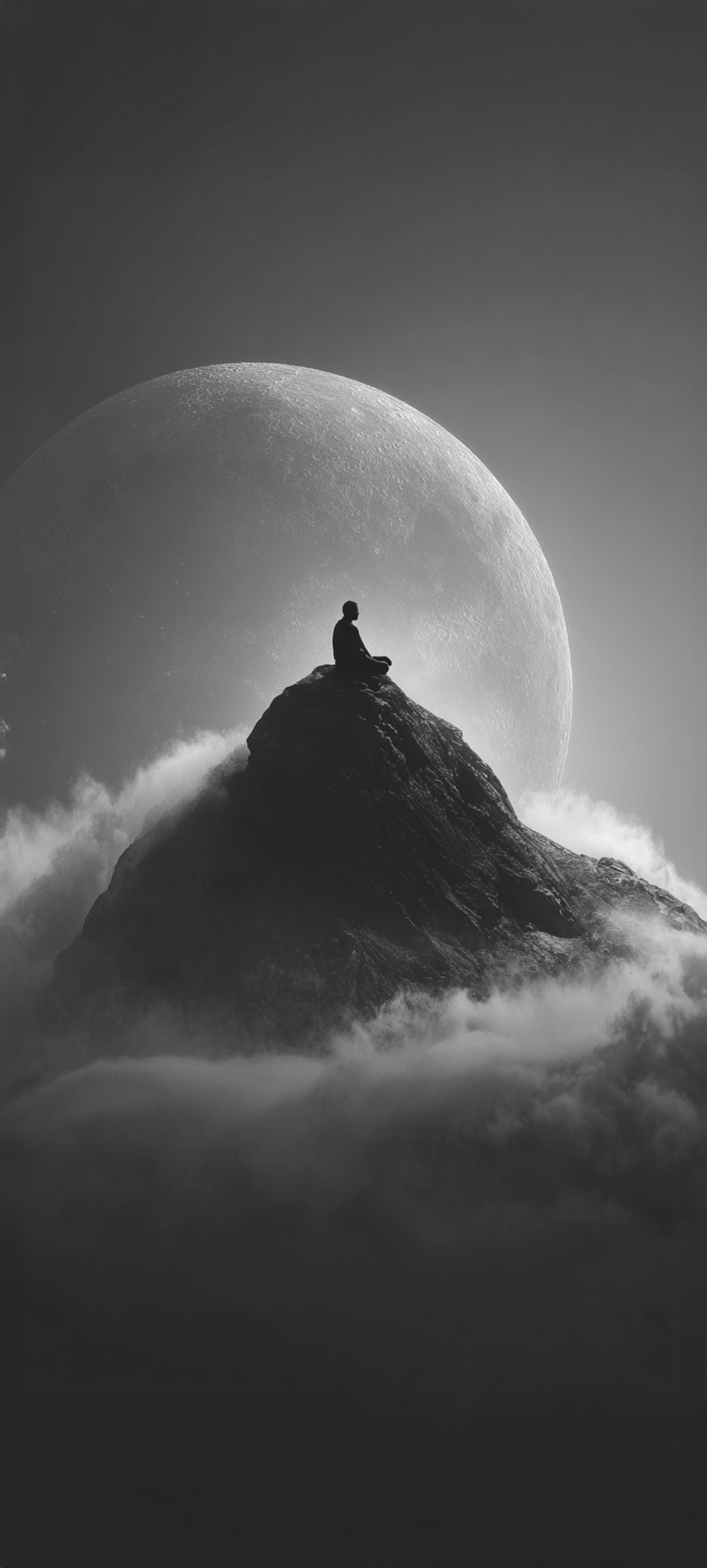
Download an image from the catalogue. If Safari saved it to Files, open the image, tap Share and save it to Photos. A portrait wallpaper with some room at the top is a good starting point for an iPhone Lock Screen.
Set the wallpaper in Settings
- Go to Settings → Wallpaper → Add New Wallpaper.
- Tap Photos and pick the saved image.
- Drag the image or pinch to resize it. Check that the clock and widgets are easy to read, then tap Add.
- Choose Set as Wallpaper Pair to use the same image on both screens. For a separate background, tap Customize Home Screen and choose a photo, colour or blur.
You can also open the editor from the Lock Screen. Unlock your iPhone without leaving that screen, touch and hold the background, then tap +.
If the iPhone crops too much
Zoom out and move the subject closer to the centre. If the edges still cut off part of the scene, try a taller image. On the Home Screen, you can keep the same picture and turn on blur to make app labels easier to read.
Use different wallpapers for work and downtime
Create two Lock Screens. In the Lock Screen gallery, tap Focus beneath the screen you want to link and choose a mode such as Work. The iPhone switches to that Lock Screen when the Focus turns on.