
How to set a wallpaper on Mac
Add your own image to a MacBook or external display and check how it crops.
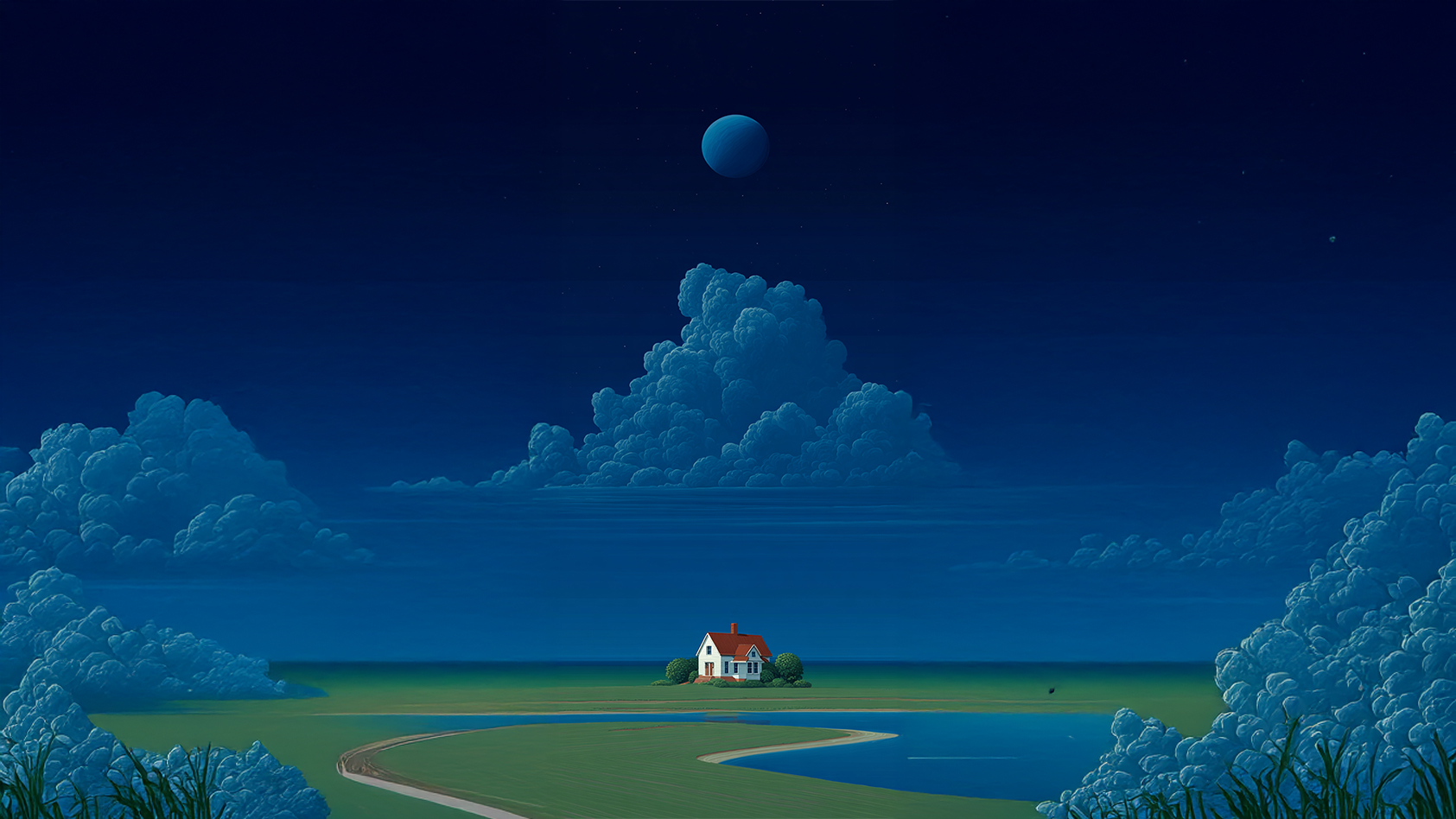
Download a landscape image and save it in the folder where you plan to keep your wallpapers. Your MacBook and external monitor may crop the same image differently because their screens have different proportions.
Add your own image
- Open the Apple menu → System Settings → Wallpaper.
- Scroll to Your Photos and choose Add Photo. Open the downloaded file from Finder in the window that appears.
- Select the image. Check its edges and make sure the menu bar and desktop icons are easy to see.
If the picture is already in Photos, select it, open the Share menu and choose Set Wallpaper.
Use one background or different images on each display
Wallpaper settings can apply the same image to all Spaces and displays. For separate backgrounds, turn off that option and pick a picture for the display or Space you want. On a narrower screen, check that a subject near the edge survives the crop.
Downloaded JPEG and PNG images work as still wallpapers. You can select the built-in dynamic backgrounds and screen savers separately in the same settings.